Is Voicare not picking up your voice? Don't worry – it's almost always a microphone setting. Follow these steps to resolve the issue in just a few minutes.
1. Check if the audio bar is moving
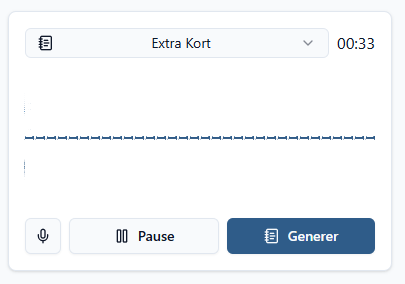
When you start a recording in Voicare, you should see a blue audio bar moving in sync with your voice. This confirms that the microphone is active and capturing sound correctly.
2. The audio bar is moving, but no note is generated
If the blue audio bar is moving but you still don't get a note generated, try the following:
- Contact our support team for help.
- Or click the Template icon (the pencil) and select "Regenerate" to regenerate the note with a new template.
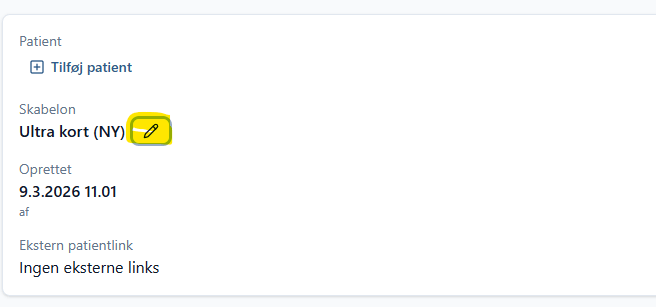
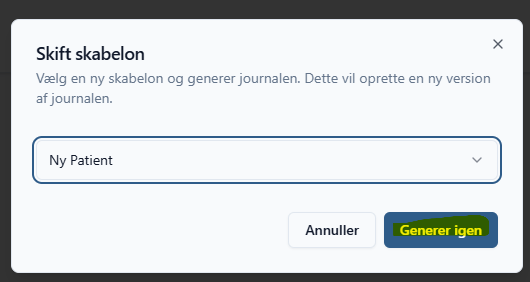
Note: The screenshots are in Danish, but the buttons are located in the same place regardless of language.
3. The audio bar is NOT moving
If the audio bar is completely still, Voicare is not receiving any sound from your microphone. Check the following:
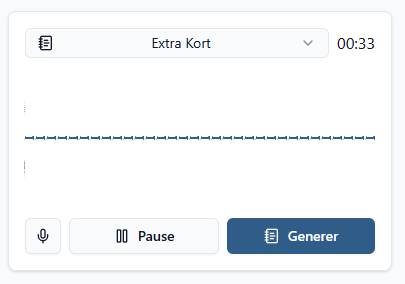
Select the correct microphone in Voicare
Click the microphone icon in Voicare to select the correct microphone. If you have a headset or external microphone connected, make sure it is selected as the input device.
Selected microphone: Default
- Click the microphone icon to the left of Start in Voicare.
- Select the microphone you want to use, for example your headset or an external microphone.
- Start recording and speak. Check that the audio bar moves.
4. Check the microphone volume
Even if the correct microphone is selected, the volume may be too low or completely muted. Check the following:
- Make sure the microphone is not muted.
- Set the microphone volume to 100%.
- Note: Many keyboards have a shortcut key to mute the microphone – often F1 in combination with the Fn key. Check if you accidentally muted it.
5. Open Windows Sound Settings
You can quickly open your Windows sound settings by clicking the link below:
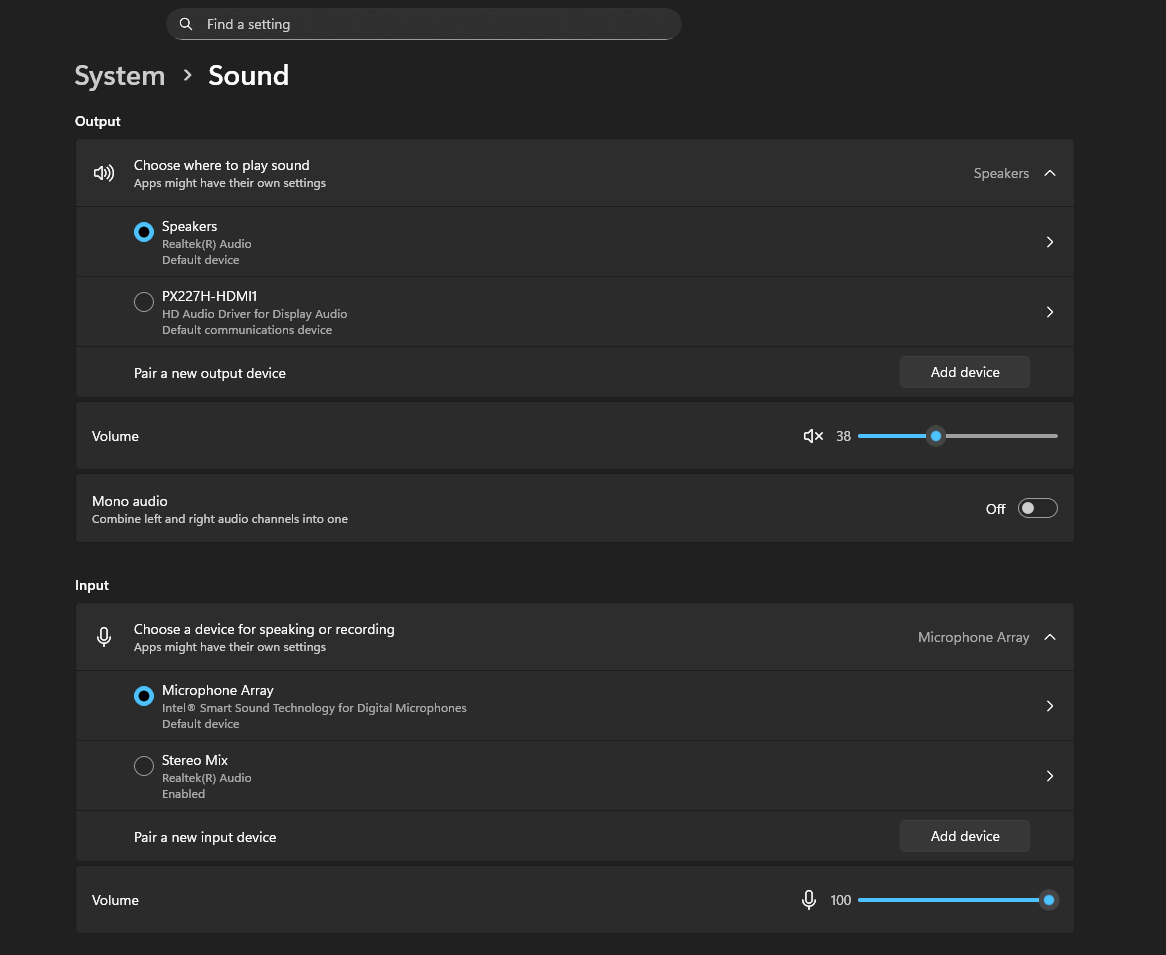
Under Input, select the correct microphone and make sure the volume is set to 100%.
Still having issues?
If you've followed all the steps and are still experiencing problems, feel free to contact our support team. We're happy to help.
Need help?
Email us at support@voicare.ai – we typically respond within a few hours.